
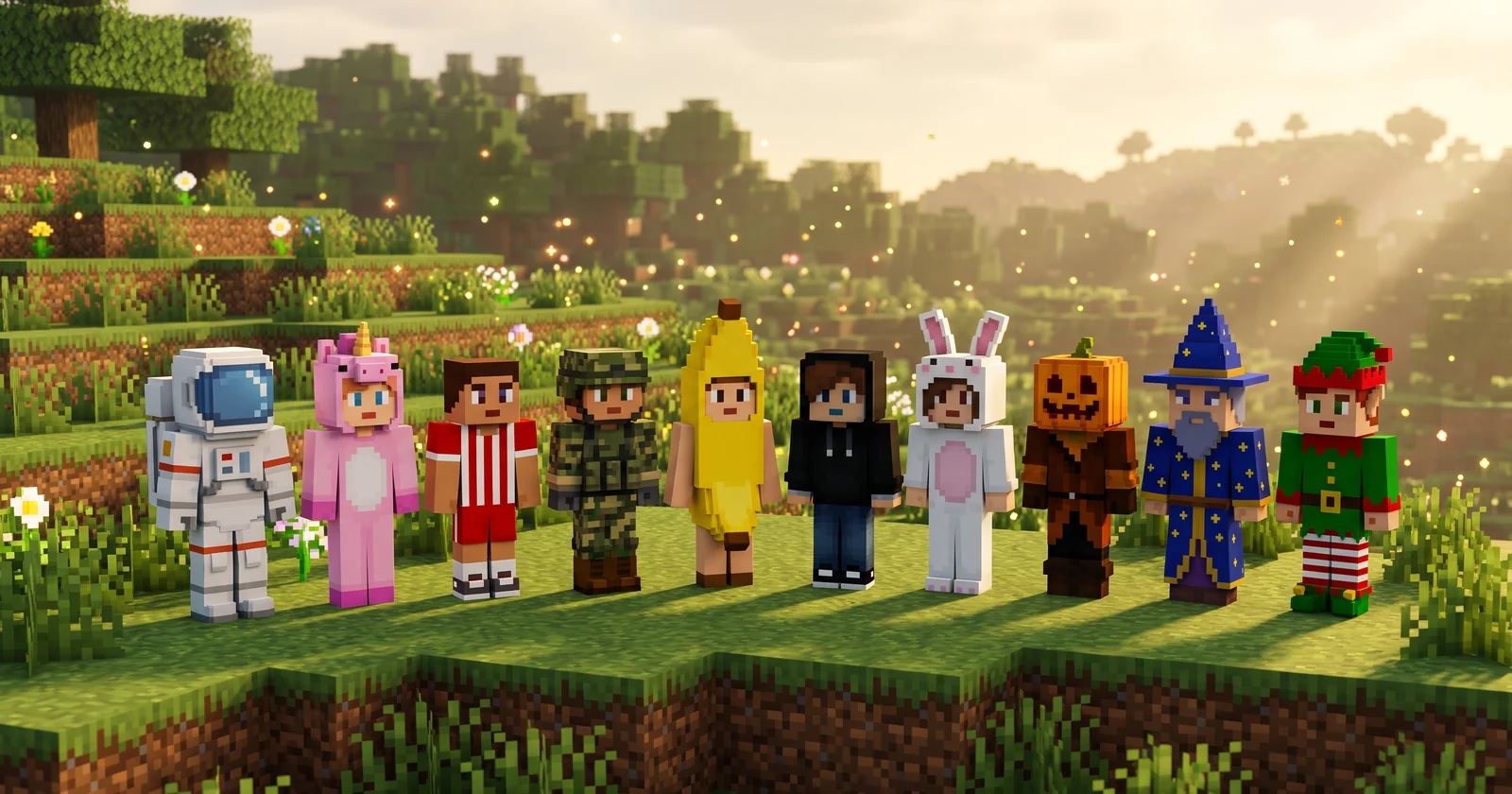
Guides / Survival Guides / Minecraft Skins: Free Skins to Download and How to Use Them
Minecraft Skins: Free Skins to Download and How to Use Them
Published November 18, 2026
A Minecraft skin is the look of your player character: a flat picture that the game wraps around the player model, so that it decides how your head, body, arms and legs look. This guide has a library of 64 free original Minecraft skins to download with one tap, lets you preview any skin file on the model before you use it, and explains how to set a skin on Java Edition and on Bedrock Edition, what the Classic and Slim arm models are, and how to make your own with a skin editor or skin maker. If you are looking for a Minecraft skin download, mc skins for Java or Bedrock, or girl skins, boy skins, Christmas skins and Halloween skins, they are all in the library below: type a word into the search box to find them.
How a Minecraft skin works
The player model is built from six boxes: the head, the body, two arms and two legs. A skin is one flat picture that is cut into the faces of these boxes (front, back, sides, top and bottom of each one), so each pixel of the picture ends up on a block of the character. The picture has two layers. The base layer is the character itself. The second layer sits on top of it, slightly bigger, and holds the parts that stand out from the body: hair, hats, jackets, sleeves and trousers. Where the second layer is transparent you see the base layer underneath, and that is what makes a skin look thick instead of flat.
Draw a skin yourself and try it here
If you already have a skin file, or you drew one in a skin editor, you can select it below and see it on the player model in 3/4 view: drag the character to turn it around. The file stays on your device. It is read by your browser and never uploaded or sent anywhere. The preview draws both layers and shows the difference between Classic and Slim arms, which is set automatically when the file leaves the unused arm column empty (you can switch it by hand).
The file stays on your device. Nothing is uploaded or sent anywhere.
No skin chosen yet. Pick a 64x64 PNG (or an old 64x32 one) to see it on the model.
A Minecraft skin file is a 64x64 PNG
The picture is a PNG file that is 64 pixels wide and 64 pixels tall, with a transparent background where nothing is drawn. The base layer and the second layer share the same file: the second layer lives in separate areas of the picture, which is why a skin needs transparent pixels. Very old skins used a 64x32 picture. The game still reads them, but they have no separate left arm and leg and no second layer except the hat, so new skins use 64x64. The arms can be drawn two ways, Classic (4 pixels wide) or Slim (3 pixels wide): see Classic vs Slim arms below.
Free Minecraft skin download library
Here are some skins we created that are free to use. Pick any you like, download and use.
Free to modify and use for any non-commercial purpose. If you use a skin commercially, name the source and creator (AnvilCalc, anvilcalc.com) and link back to anvilcalc.com.
64 of 64 skins
Every skin is a ready-to-upload 64x64 PNG with a transparent second layer where needed. Each card shows the skin and the arm model it was drawn for (Classic or Slim). Tap a skin to see it on the player model in a larger 3/4 preview that you can drag to turn around, and to confirm the download.
How to use a Minecraft skin on Java Edition
- Download the PNG from the library above. Keep the file where you can find it again.
- Open the Minecraft Launcher and go to the Skins section of the launcher.
- Add a new skin, pick the downloaded PNG and choose the arm model the skin was made for: Classic (4 pixel arms) or Slim (3 pixel arms). The confirmation window of every skin above tells you which one.
- Save it and start the game: your player now wears the skin. Java skins are tied to your account, so other players on servers see it too.
You can also change the skin from the profile page of your account on minecraft.net, in its skin section (Change Skin). There you choose the arm width the same way. Only accounts that own the Java Edition can set a custom skin.
How to use a Minecraft skin on Bedrock Edition
- Download the PNG to your device (Windows or phone and tablet).
- In Bedrock, open your profile and the character editor (the menu is called Edit Character or Dressing Room depending on the version).
- Open the Classic Skins tab and choose to import a custom skin, then pick the PNG.
- Choose the Classic or Slim model that matches the skin and confirm.
Console versions may not offer a custom import. Bedrock keeps its own skin slots, so a skin you set on Java is not automatically the skin on Bedrock: import it on each edition you play on.
Classic vs Slim arms
A skin file always has the same layout, but the arms can be drawn two ways. Classic arms are 4 pixels wide (the original Steve shape). Slim arms are 3 pixels wide, and the game ignores the right-most column of the arm area of the picture. If you pick the wrong model, the skin still loads, but you notice it on the arms: with Slim chosen for a Classic skin the arms look cut off, and with Classic chosen for a Slim skin a thin gap or a stripe of different colour shows on the arm. Switch the model in the launcher or the character editor and it is fixed, no new download needed.
What if the skin looks wrong?
- A gap or odd stripe on the arms: the arm model is wrong. Try the other one (Classic or Slim).
- The skin did not change: restart the game, check that the file is a PNG and that it is 64x64 pixels, and on a server wait for the next time you join.
- Old skin files: very old skins used a 64x32 picture. The game still reads them, but they have no separate left arm and leg, so new skins use 64x64.
- A different look on another edition: set the skin again there, Java and Bedrock keep them separately.
Make your own Minecraft skin
You can start from any skin above, change the colours and use it for your own account. Free skin editors and skin makers run in the browser: you open the 64x64 PNG, paint each part of the body pixel by pixel, preview it in 3D and download the result. A plain image editor works too if you keep the picture at 64x64 and keep the layout of the parts. Keep the second layer (hair, hats, jackets) in mind: it is the part of the file that makes a skin look thick instead of flat. Look for a tool that shows the Classic and Slim models side by side.
Skin licence
The skins in the library are original artwork by AnvilCalc. They are free to modify and use for any non-commercial purpose. If you use a skin commercially, name the source and creator (AnvilCalc, anvilcalc.com) and link back to anvilcalc.com (for example to https://anvilcalc.com/guides/minecraft-skins). The same text is stored inside every PNG file. These skins are fan content: they are not made by, and not affiliated with, Mojang or Microsoft.
Frequently asked questions
Are these Minecraft skins free to use?
Yes. Free to modify and use for any non-commercial purpose. If you use a skin commercially, name the source and creator (AnvilCalc, anvilcalc.com) and link back to anvilcalc.com. The skins are fan content, not made by or affiliated with Mojang or Microsoft.
How do I change my Minecraft skin?
On Java Edition open the Minecraft Launcher, go to the Skins section, add a new skin, pick the PNG and choose Classic or Slim arms. You can also use the skin section of your profile on minecraft.net. On Bedrock open your profile and the character editor, choose Classic Skins and import the PNG.
Why does my skin look wrong or have a gap on the arms?
Almost always the arm model does not match the skin. Classic arms are 4 pixels wide and Slim arms are 3 pixels wide. Choose the other model in the launcher or character editor, no new download is needed.
What is the difference between Classic and Slim?
Only the width of the arms: Classic has 4 pixel arms and Slim has 3 pixel arms, and a Slim skin leaves the unused column of the arm area empty. Everything else is identical. The download window of each skin says which model it was drawn for.
Do Minecraft skins work on Java and Bedrock?
The PNG file works on both, because both use the 64x64 skin layout. But the editions keep separate skin settings, so a skin set on Java does not change your Bedrock character: import it on each edition. Console versions may not allow a custom skin.
Can I use these skins on a server?
Yes on Java servers: the skin is tied to your account, so other players see it. Bedrock servers and the Realms show the skin you set on that edition. Some servers or minigames can override skins with their own.